
Registering the Fractal Science Kit
After you install the Fractal Science Kit, you can try out the application before you need to purchase a license for the product. During the trial period, the fractal images are watermarked with the product name. Other than that, the trial version is identical to the registered version. When you register the product the watermark is removed from the fractal images.

Register Product Dialog
When you purchase a product license, you will be sent an email containing licensing information which you can use to convert the trial version of the Fractal Science Kit to a registered version.
The licensing information is private and must be kept in a safe and secure location. If you were to upgrade your computer system, you would need this information to install the product on your new computer. The licensing information is a set of unique keys specific to your product license. The licensing information may not be shared or used concurrently on multiple computers.
See the Fractal Science Kit End-User License Agreement for licensing details.
To register the product, execute the Register Product command on the File menu of the Fractal Window to display the Register Product dialog.
If you are installing an update to the current version of the product, and you have already registered a previous version, no action is required; i.e., you do not need to register the product again. In fact, the Register Product command is disabled.
The licensing information contains 4 pieces of information:
- Registered User
- Email Address
- Registration ID
- License Key
These must be entered into the Register Product dialog exactly as given in the email to complete the registration process.
Registered User and Email Address are the name and email address you used when you purchased a license for the product. If you were to upgrade your computer system at a later time and reinstall the product on your new computer, you must use these same values when you register the product on the new computer. For example, you must use the same email address even if you no longer use this as your current email address!
The Registration ID and License Key are composed of 32 hex digits (0-9 or A-F) divided into 4 groups of 8 characters each, separated by the character '-'.
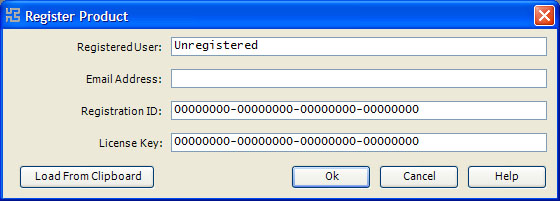
Type in the registration information exactly as given in the email and click Ok to register the product. Alternatively, you can open the email, copy the email text to the Windows Clipboard, and click the Load From Clipboard button to automatically fill in the required licensing information. Then click Ok to register the product. Once the product has been registered, the Register Product command is disabled.